Lossless vs lossy
Every raster image format chooses one of two fundamental compression strategies — lossless or lossy — and this single decision shapes everything about when and why you would use it.
Lossless: every pixel preserved
A lossless format compresses the pixel data without discarding any of it. When you decode the file you get back the exact same pixel values that were stored. The tradeoff is that savings are modest: a lossless compressor can only exploit patterns that already exist in the data (runs of identical color, repeated pixel sequences) without inventing new ones. For photographs, which have subtle, irregular tonal variation across every region, lossless compression achieves relatively little. For flat illustrations, logos, and screenshots — where large areas share exactly the same color — lossless compression can be very effective.
PNG and GIF are lossless. WebP and AVIF each offer a lossless mode as well.
Lossy: discard data, save bytes
A lossy format permanently discards pixel information during encoding to achieve much higher compression ratios. The decoder cannot reconstruct the original pixels — it only has the approximation the encoder chose to keep. The key insight is that human vision is not perfectly sensitive to all frequencies of detail: we are much more sensitive to gradual luminance changes than to fine high-frequency texture. Lossy encoders exploit this by aggressively discarding detail that is unlikely to be noticed at typical viewing distances. JPEG is the classic lossy format. At moderate quality settings the result is visually indistinguishable from the original; at very low quality settings you see the encoder's compromises as compression artifacts — blotchy regions, ringing around edges, and color bleeding.
The practical rule of thumb: use lossless for graphics where hard edges and flat colors must stay crisp; use lossy for photographs and natural scenes where the slight data loss is invisible and the file-size savings are enormous. That said, modern formats like WebP and AVIF close the gap — they offer both modes and can beat JPEG at lossy compression while also beating PNG at lossless compression.
GIF
The Graphics Interchange Format was introduced in 1987 and is one of the oldest image formats still found on the web. Understanding it matters not because you should use it today, but because you will encounter it and need to know its sharp limitations.
8-bit color palette
GIF stores images in an indexed color model: it maintains a palette of up to 256 colors (8-bit), and each pixel stores only an index into that palette. For full-color photographs with millions of subtle tones this is catastrophically limiting — the encoder must posterize the image, mapping each pixel to its nearest palette entry. The result is obvious banding and color reduction. For flat illustrations, line art, and simple graphics with few distinct colors, the limitation is invisible and the compression (LZW, which works very well on horizontal runs of identical color) can be excellent.
1-bit transparency
GIF supports transparency, but only in the most basic form: one palette entry can be designated "transparent." A pixel is either fully opaque or fully invisible — there is no intermediate alpha value. This means smooth semi-transparent edges and shadows are impossible; the result is a hard jagged edge when the image is placed over any background other than the one it was designed for.
Animation and interlacing
GIF's most enduring feature is frame-by-frame animation: the format
allows multiple image frames with per-frame delays, creating a simple flipbook effect.
This is why animated GIFs proliferated on the web. However, animated GIFs are
notoriously large compared to equivalent video formats — a modern looping
<video> with the same content encoded as WebM or MP4 will typically
be 5–10× smaller. GIF also supports interlacing, which causes the
image to load in a low-resolution pass first and progressively fill in detail — a
legacy technique for narrowband connections.
In 2024, GIF should be considered a legacy format. Prefer animated WebP or AVIF for
animation, or a looping <video> element for anything more than a
few frames.
JPEG
JPEG (Joint Photographic Experts Group, 1992) was designed specifically for compressing photographs. It remains the most widely deployed image format on the web despite being over thirty years old, and understanding how it works explains both its strengths and its characteristic failure modes.
How JPEG compression works
JPEG operates in the frequency domain using the Discrete Cosine Transform (DCT). The image is divided into 8×8 pixel blocks; each block is transformed into a sum of cosine waves at different frequencies; then the high-frequency coefficients (fine detail) are quantized more aggressively than the low-frequency ones (broad shapes and gradients), because vision is less sensitive to high-frequency loss. The encoder's quality setting controls how aggressively those high-frequency coefficients are discarded — higher quality keeps more detail, lower quality discards more. Crucially, JPEG works at the 8×8 block level. When quality is low enough, you can see the block boundaries as patches of averaged color, a characteristic artifact called blockiness.
JPEG supports full 24-bit color (16.7 million colors, 8 bits per channel across red, green, and blue). It does not support an alpha channel — there is no transparency in the format. Any region that should be transparent must be filled with a solid color at encoding time.
Baseline vs progressive JPEG
JPEG comes in two scan orders. A baseline JPEG stores the image from top to bottom, one row at a time. As it downloads, the browser reveals the image from the top down — which on a slow connection produces an unfinished-looking page until the image completes. A progressive JPEG stores multiple "passes" at increasing levels of detail: the first pass contains a blurry low-resolution version of the entire image, subsequent passes add progressively more high-frequency detail. The user sees a blurry-then-sharp loading experience rather than a half-revealed stripe. Progressive JPEGs are sometimes slightly larger than baseline for very small files but often slightly smaller for files above ~10 KB, and the perceived loading experience is generally considered superior.
PNG
Portable Network Graphics (1996) was designed as an open, patent-free replacement for GIF that lifted the 256-color limitation. It is a lossless format, which means it stores pixel data exactly and produces no compression artifacts — at the cost of larger file sizes for photographs.
Full 8-bit alpha transparency
PNG's most important advantage over GIF and JPEG is its full alpha channel. Each pixel stores an 8-bit opacity value (0 = fully transparent, 255 = fully opaque) alongside its RGB color. This makes smooth semi-transparent shadows, glows, and anti-aliased edges possible: PNG elements can be placed over any background and blend naturally. This is the reason PNG became the dominant format for UI elements, logos, icons, and any image that needs to sit over a variable background color.
When PNG wins — and when it loses
PNG excels at images with large flat-color regions, hard geometric edges, and transparency requirements. Screenshots, diagrams, and software-rendered illustrations tend to be smaller as PNG than as JPEG because lossless compression works well on their predictable patterns. For photographs with natural variation across every pixel, the lossless requirement means PNG files are far larger than an equivalent-quality JPEG — sometimes 5–10× larger. PNG also supports interlacing (like GIF) for progressive loading, though it is rarely used in practice.
APNG (Animated PNG) extends the format with multi-frame animation support, offering full-color animation with alpha transparency — neither of which GIF can match. Browser support for APNG is universal in modern browsers.
Demo: PNG alpha transparency
The image below is a PNG with an alpha channel. Only the circles and their edges
occupy opaque pixels; the rest of the canvas is fully or partially transparent.
The checkerboard is a pure-CSS background on the surrounding <figure>
that "shows through" wherever the PNG is transparent. If this were a JPEG, those
transparent areas would be filled with white (or whatever the encoder's background
setting was).

WebP
WebP was developed by Google (2010, based on the VP8 video codec) and is the first modern format to directly replace both JPEG and PNG in a single container. It supports both lossy and lossless compression, a full alpha channel in both modes, and animation (including animated lossless WebP with transparency — something GIF cannot match). Browser support is universal in modern browsers (Chrome 32+, Firefox 65+, Safari 14+).
Compression gains over legacy formats
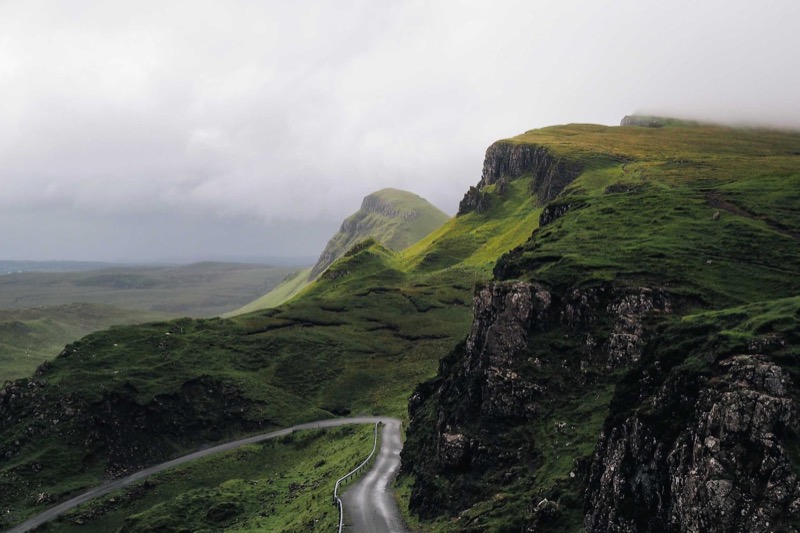
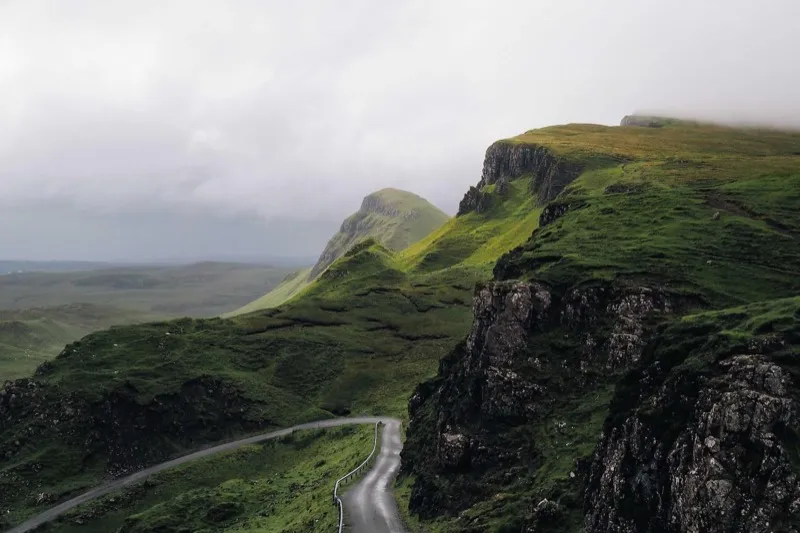
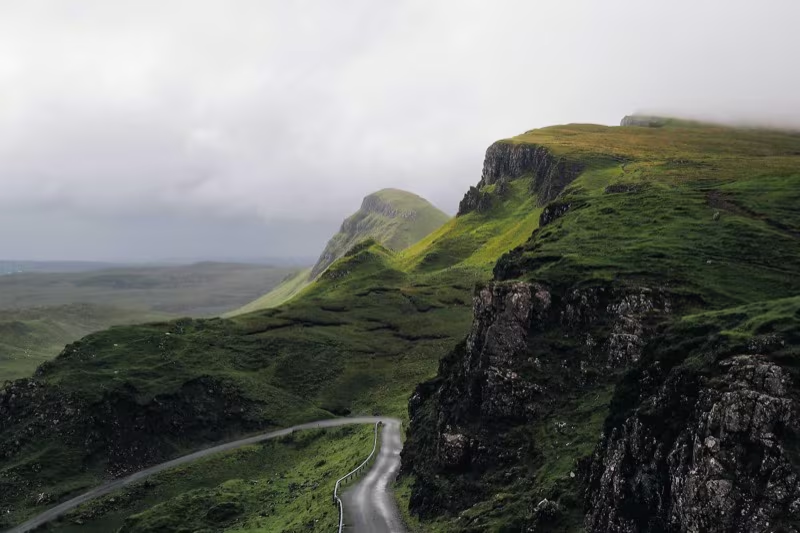
For lossy compression, WebP typically produces files that are 25–30% smaller than JPEG at equivalent visual quality. For lossless compression, WebP files are typically 25% smaller than equivalent PNG files. These are not marginal savings — on a page with many images they translate to meaningful reductions in data transfer and faster page loads. The landscape photo used throughout this tutorial illustrates the gap: the JPEG version is ~99 KB; the WebP version of the same image at comparable quality is ~45 KB.
WebP is a safe default for most web images today. For browsers that don't yet support
a newer format like AVIF, WebP provides excellent compression with broad compatibility.
Use <picture> to offer AVIF first, then WebP, then JPEG — letting
each browser take the best format it can handle.
AVIF
AVIF (AV1 Image File Format, 2019) is derived from the AV1 video codec — a royalty-free codec developed by a broad industry coalition. It is currently the highest-compression raster format with wide browser support (Chrome 85+, Firefox 93+, Safari 16+).
A superset of WebP's features
Like WebP, AVIF supports lossy compression, lossless compression, full alpha transparency, and animation. It adds support for HDR (High Dynamic Range) color and wide color gamut imagery, making it suitable for professional photographic workflows where WebP's 8-bit-per-channel limit is a constraint.
Compression gains
AVIF typically beats WebP by a further 20% in file size at equivalent quality, and it can be 40–50% smaller than JPEG. The landscape photo trio from this tutorial makes this concrete: JPEG at ~99 KB, WebP at ~45 KB, AVIF at ~40 KB. For extremely aggressive compression (low quality settings), AVIF degrades much more gracefully than JPEG — it tends to produce a soft, slightly blurry image rather than the blocky 8×8-tile artifacts JPEG shows. One downside: AVIF encoding is significantly more CPU-intensive than JPEG or WebP encoding, which matters if you are generating variants at request time on a server.
Demo: same photo, three formats
All three images below show the same 800-pixel-wide landscape photo. Visual quality is comparable across all three at these settings. The file-size difference is not subtle — WebP saves ~54% over JPEG, and AVIF saves ~60%.
JPEG XL
JPEG XL (JXL) is the newest raster image format, standardized in 2022. It is designed as a long-term successor to JPEG — capable of losslessly re-encoding existing JPEGs (making it possible to "upgrade" a JPEG archive to JXL without any quality loss), while also offering strong lossy compression, lossless mode, alpha transparency, animation, and HDR support.
At the time of writing, browser support for JPEG XL is limited.
Safari 17+ supports it; Chrome removed its experimental flag in 2022 before
re-adding support in Chrome 110+; Firefox support is behind a flag and not enabled
by default. Before using JPEG XL in production, always check current compatibility
at caniuse.com/jpegxl
and plan a <picture>-based fallback to AVIF or WebP.
For most projects today, AVIF offers similar compression gains with significantly broader browser coverage. JPEG XL is worth watching as support expands.
Transparency support
Choosing a format based on its transparency capabilities is often decisive. The table below summarizes what each format offers. "Full alpha" means every pixel can have any opacity value from 0 to 255. "1-bit only" means a pixel is either fully transparent or fully opaque — no gradients, no soft edges, no smooth anti-aliasing over variable backgrounds. "None" means the format has no transparency concept at all.
For any image that needs to sit over a variable background — a logo, an icon, a cut-out product photo — you need full alpha, which means PNG, WebP, or AVIF. For vector graphics with transparency, see the SVG section, where transparency is built into the format's geometry model.
| Format | Transparency | Notes |
|---|---|---|
| GIF | 1-bit only | One palette entry can be "transparent" — fully on or fully off, no smooth alpha |
| JPEG | None | No alpha channel; transparent areas must be composited onto a solid color at encode time |
| PNG | Full alpha | 8-bit alpha per pixel; the standard choice for graphics requiring transparency |
| WebP | Full alpha | Supported in both lossy and lossless modes; typically 25% smaller than PNG |
| AVIF | Full alpha | Supported in both lossy and lossless modes; usually the smallest of the three |
| JPEG XL | Full alpha | Supports alpha; limited browser support as of 2024 — verify before using |
| SVG | Yes | Transparency is intrinsic to the vector model; see the SVG section |