The decision tree
Format selection is not arbitrary — there is a logical order of questions you can work through for any image. The goal is always the same: find the format that produces the smallest file the browser can decode, without degrading quality in ways that matter for the image's purpose.
This tree is a starting point, not a law. In practice you should run your specific images through an encoder at a few quality levels and compare the results visually — content-adaptive encoding (where the encoder allocates bits to complex regions and saves on simple ones) means the same quality setting can produce very different results on different images.
Illustration vs photo
The most important thing to understand about format selection is this: the winning format depends entirely on the image content. There is no universal answer. A format that excels on one class of image can perform poorly or even make things worse on another.
Flat illustration: PNG wins over JPEG
Consider a software illustration — a diagram, a flat icon sheet, or any image with large areas of solid color and hard geometric edges. A lossless format like PNG compresses this very efficiently: consecutive pixels with identical values collapse almost to nothing. A lossy format like JPEG, by contrast, works in 8×8 pixel blocks and introduces averaging across block boundaries, which creates visible blurring and color fringing on those hard edges — even at high quality settings. For flat art, JPEG barely saves bytes and actively degrades quality.
The comparison below makes this concrete. The illustration is an SVG-style flat graphic with solid fills and hard edges, saved at identical display dimensions in both formats. The PNG is lossless and crisp; the JPEG, despite being slightly smaller, shows color fringing around the hard edges.


Note that the file sizes here are very close — JPEG saves less than half a kilobyte versus PNG, while introducing compression artifacts. For flat art, this trade is never worth it. PNG (or better: WebP lossless or AVIF lossless) is the right choice.
Photo: modern lossy formats win decisively
For photographs the calculus reverses completely. Natural scenes have complex, irregular tonal variation across every pixel — exactly the kind of content that lossless compression cannot exploit. A PNG of a photograph is enormous. A lossy format like JPEG, WebP, or AVIF can discard imperceptible high-frequency detail and achieve massive savings. The photo comparison below shows the same landscape image in three formats at comparable visual quality:
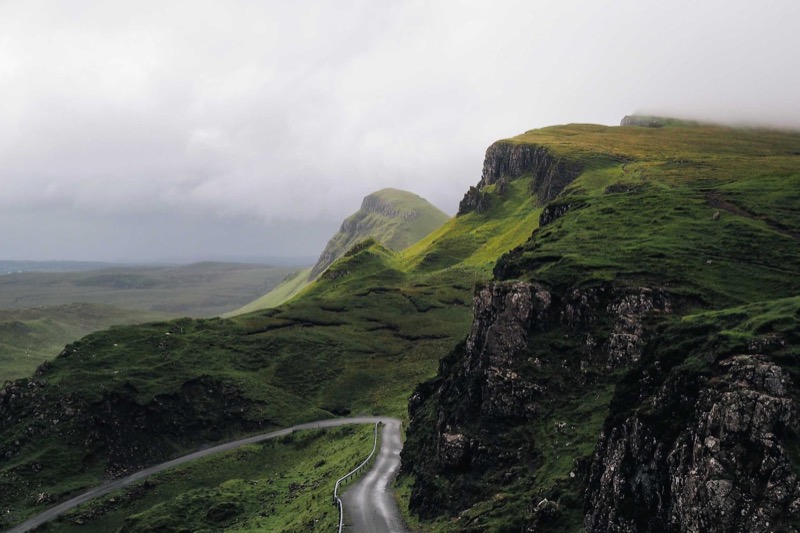
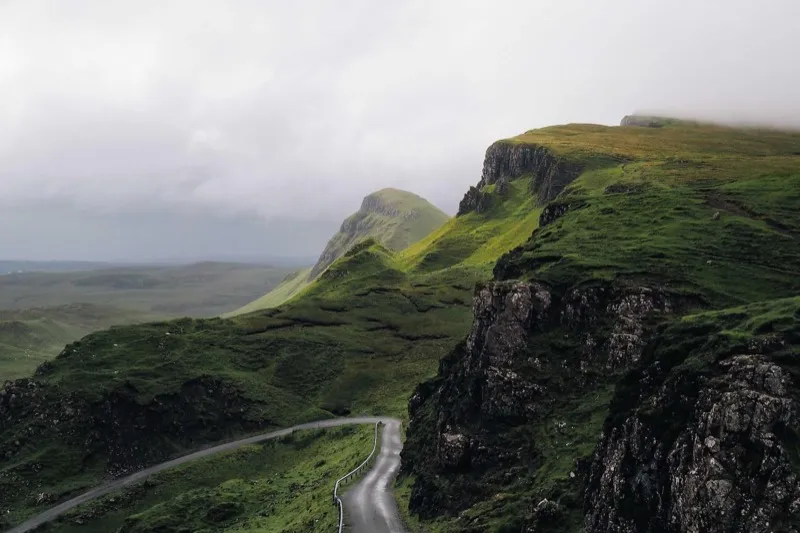
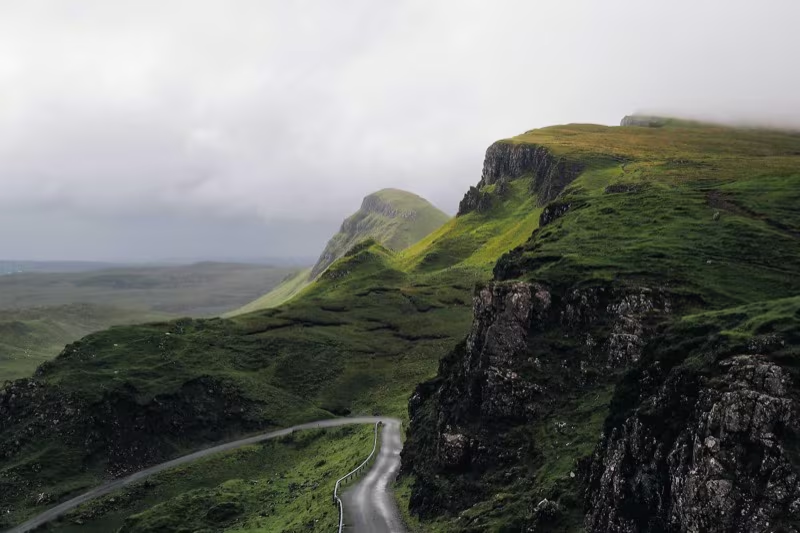
All three look visually equivalent at normal viewing distance. The difference is purely in bytes delivered to the user — and at 55–60% savings, that is the difference between a fast-loading page and a slow one on a constrained mobile connection.
Real size comparison
The table below makes the photo format comparison precise. These are the exact file sizes on disk for the same 800×534 landscape photograph encoded in each format at default quality settings. All three are visually comparable — the differences lie entirely in how many bytes the browser must download.
| Format | File size | Savings vs JPEG |
|---|---|---|
JPEG (landscape-800.jpg) |
~99 KB | — baseline |
WebP (landscape-800.webp) |
~45 KB | ~54% smaller |
AVIF (landscape-800.avif) |
~40 KB | ~60% smaller |
Modern formats save 55–60% for this photograph. Multiply that saving across every
image on a page — a typical news article or e-commerce product listing may load
dozens — and the cumulative impact on page weight, load time, and mobile data usage
is substantial. This is why the <picture> element with AVIF and
WebP sources is considered a best practice for any performance-conscious site, not
just an optimization for specialists.
Don't go byte-crazy
Chasing the smallest possible file size is a trap. Quality and file size form a continuous spectrum, and there is a point on that curve — different for every image — where further compression causes visible degradation that audiences notice. Finding that sweet spot is part of the craft of image optimization.
The quality ladder
JPEG encoders expose a quality setting — typically a number from 0 to 100 — that controls how aggressively high-frequency detail is discarded. The four variants below show the same landscape photo encoded at quality levels q90, q75, q60, and q35. Look carefully at the cliff textures and the road surface as quality decreases.
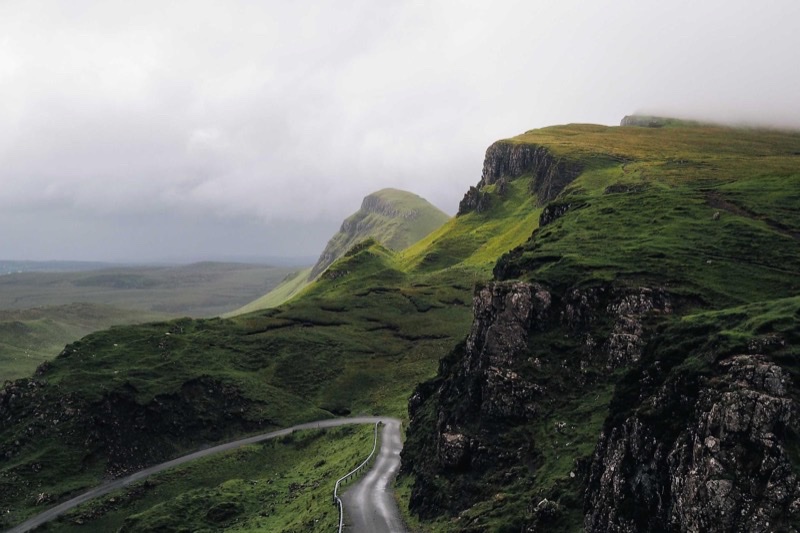
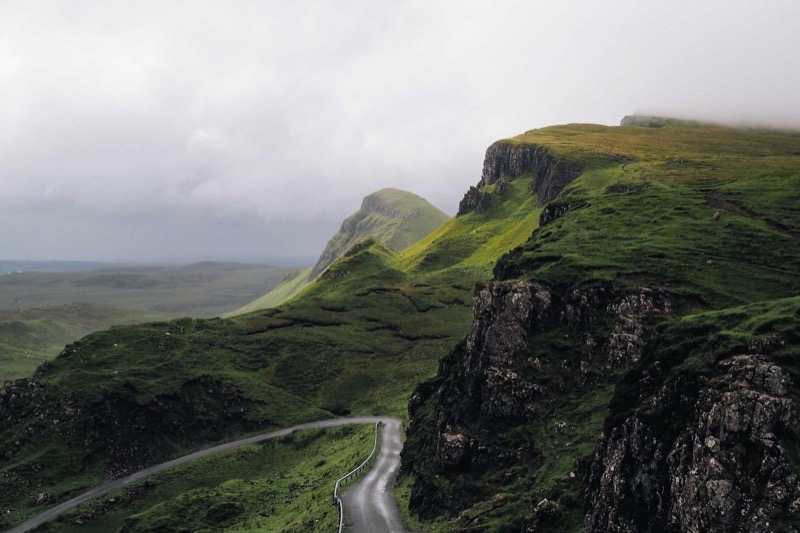
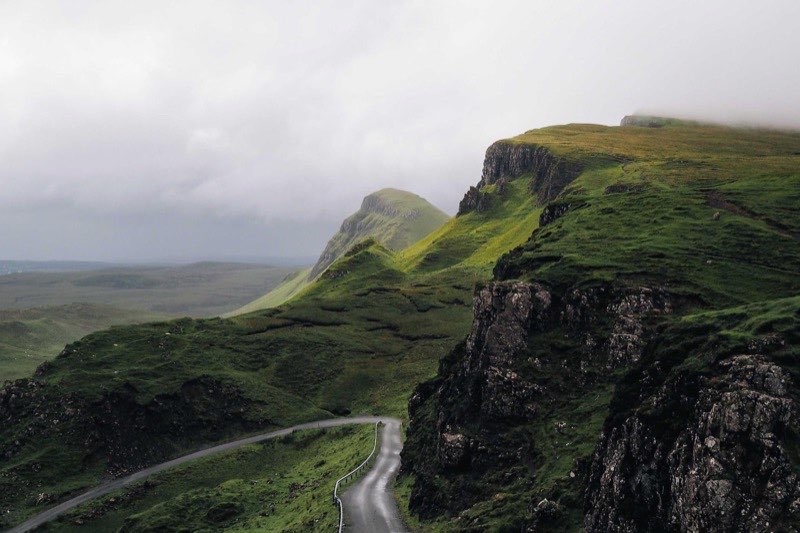
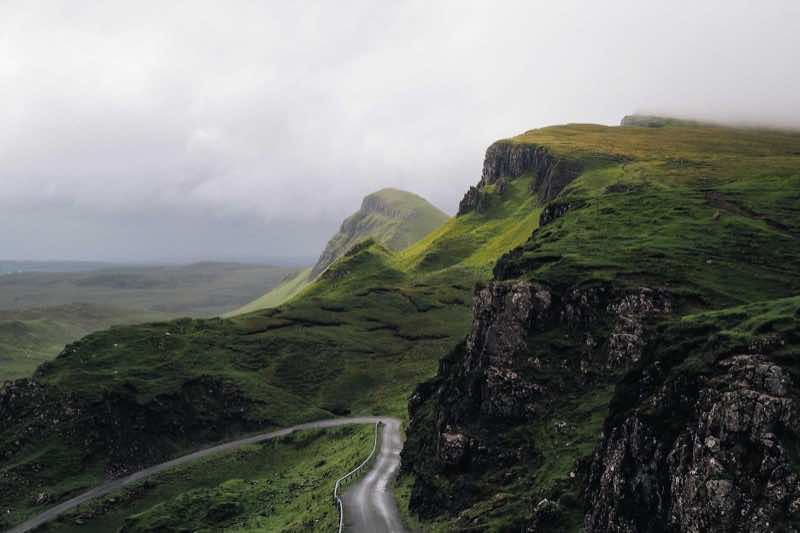
At q90 the image is 114 KB — excellent quality but the largest file. At q75 it is 99 KB and visually nearly identical. At q60 it is 78 KB and still looks clean on most content. At q35 it is only 34 KB — a dramatic saving — but the 8×8 JPEG block pattern becomes visible in the smooth sky and on the road surface. The q35 file is too degraded for editorial or product use; it might be acceptable as a tiny thumbnail where the display size is so small that the artifact pattern is invisible.
A practical quality rule of thumb
For JPEG, a quality between 75 and 85 is the sweet spot for most web photography — perceptually lossless for typical viewing, and 30–40% smaller than q95+. Below q60, artifacts become increasingly risky on varied content. WebP and AVIF degrade more gracefully at equivalent settings, so their sweet spot can be pushed a little lower. Always validate by looking at your specific images at each quality level rather than trusting quality numbers in isolation — a complex scene with fine textures will show artifacts at a quality that is perfectly clean on a smooth portrait.
The goal is not the smallest possible file — it is the smallest file that your users will not notice has been compressed. Getting this right is one of the highest-leverage performance optimizations available to a front-end developer, requiring no JavaScript and no framework.